
Your code is on GitHub. Here’s how to get it running on Hostless, including the repository-access step that can trip you up.
1. Choose your project and GitHub connection
Open the Hostless dashboard, choose the project that should own your app, then open Apps → Create app. Choose GitHub in Git provider.
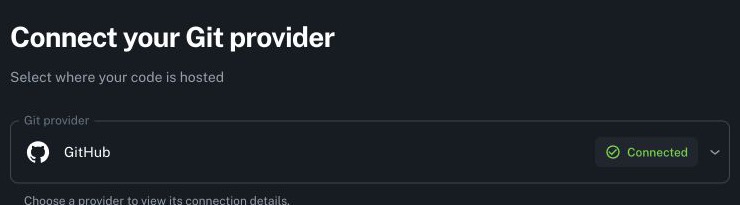
If prompted, select Connect GitHub and finish authorization. A shared project connection is managed by the Hostless project owner under Settings → Git connections. If you cannot connect it yourself, ask that owner to help.
Connected doesn’t mean every repository is accessible. Hostless also needs its GitHub App installed on the personal account or organization that owns your repository.
2. Give Hostless access to the right repository
When GitHub opens the installation screen:
- Choose the repository owner. For
your-team/api, chooseyour-team, even if you signed in with your personal account. - Choose Only select repositories and select the repository you want to deploy.
- Review the requested permissions, then select Install.
- If GitHub shows Request or Install and request, complete the request and ask an organization owner to approve the required access. Pending approval does not grant repository access.
Already connected, but your repository is missing? Use Manage GitHub access in the repository selector or connection settings to update the installation. Return to Hostless and select Refresh access where offered.

Then select your GitHub Account, GitHub Repository, and Deploy Branch. Give the app a name. For a monorepo, set Working Directory to the app’s folder, such as /apps/api; otherwise keep /.
3. Work through the deployment settings
The app wizard separates the remaining choices into sections:
- Build configuration: Start with automatic detection, or choose Docker if your project uses a Dockerfile. Supply build and production start commands when needed. Commit your dependency lockfile.
- Scaling & runtime: Check the resources and exposed port. Your server must listen on
0.0.0.0and use thePORTvalue Hostless provides. - Storage: Add persistent storage if the app needs files to survive deployments. Keep temporary files temporary.
- Advanced settings: Check the available deployment options and add the environment variables your app needs. Keep secrets out of Git and screenshots.
- Review & create: Verify the repository, branch, working directory, commands, configuration, and estimated cost before selecting Create App.
Deploying a static frontend? Use Sites instead of Apps. Choose the repository and branch, then configure the build command and output directory—for example, npm run build and dist for a typical Vite project. A static site does not need a server start command. See the Sites guide.
4. Verify success, then push an update
Follow the deployment’s build and deploy progress. If a step fails, open its logs and fix the first meaningful error.
Once the app is running, open its Hostless URL and test a real page or API endpoint. A successful build alone does not confirm that the server is healthy.
Finally, with automatic deployments enabled, push a small commit to the selected branch. Confirm that Hostless starts a new deployment for that commit. Your GitHub-to-Hostless flow is ready.
Stuck? Check this first
| What you see | What to do |
|---|---|
| Connected, but no repositories | Install the Hostless GitHub App on the repository’s owner account, select the repository, then refresh access. |
| Organization or private repository missing | Check the installation’s repository selection and ask an organization owner about pending approval. |
| Setup window does not open | Allow pop-ups for the dashboard, then retry Manage GitHub access. |
| Build fails | Check the logs, working directory, lockfile, build command, and required environment variables. |
| Build succeeds, app is unhealthy | Check the production start command, 0.0.0.0 binding, PORT, and runtime logs. |
| A push does not deploy | Check the selected branch, automatic-deployment setting, and GitHub repository access. |
Still blocked? Send support the exact error, repository owner/name, and whether you use a personal or project connection. Never send passwords or tokens.
For more detail, see Hostless’s GitHub setup guide and GitHub’s installation and organization-approval guide.
Comments