

Give your AI coding agent its own virtual machine (VM). The agent can then install packages, run tests and change files without touching your laptop or your app. This guide shows you how to set one up.
Who this is for: developers who use a coding agent, such as Claude Code or Codex, and can connect to a Linux server over SSH.
What it covers: why a VM makes a good sandbox, how to create one, close the ports it does not need, give the agent limited access, and keep its work in Git.
What it does not cover: choosing an agent, or letting an agent deploy to production.
Why coding agents need a sandbox
Coding agents now run commands on your behalf. They install dependencies, edit files and start processes. Trust in that work is still low. In the Stack Overflow 2026 Developer Survey, only 6.6% of developers said they trust AI with important work decisions.
A sandbox lets you use the agent fully while that trust grows. The agent works inside a boundary, and your own machine and your app stay outside it.
Container or VM: which sandbox to use
Containers and VMs both isolate an agent. They draw the boundary in different places.
| Container | VM | |
|---|---|---|
| Kernel | Shares the host’s kernel | Runs its own kernel under hardware virtualization |
| Setup | Fast to start on your laptop | Runs on a separate machine you reach over SSH |
| Network | Uses the host’s network rules | Has its own firewall rules |
| Good for | Short tasks you watch | Long tasks you leave running, and code you did not write |
A container is a good choice when you watch the agent work on your laptop. A VM is the stronger choice when the agent runs for hours, or when it runs code you have not read. A VM also keeps running when you close your laptop.
Before you start
You need:
- A Hostless Cloud account with access to virtual machines. To get access, use the virtual machines page.
- An SSH key on your computer.
- The install command for your agent’s command line tool.
This guide uses a Hostless VM. The same steps work on any Linux VM that you can reach over SSH.
Step 1: Create the VM
- In the dashboard, open Virtual machines and select Create.
- Enter a name, such as
agent-sandbox. - Select a region and an image: Ubuntu 22.04 LTS or Debian 12.
- Select the smallest size. Most agents need no more.
- Add your SSH key.
- Select Create.
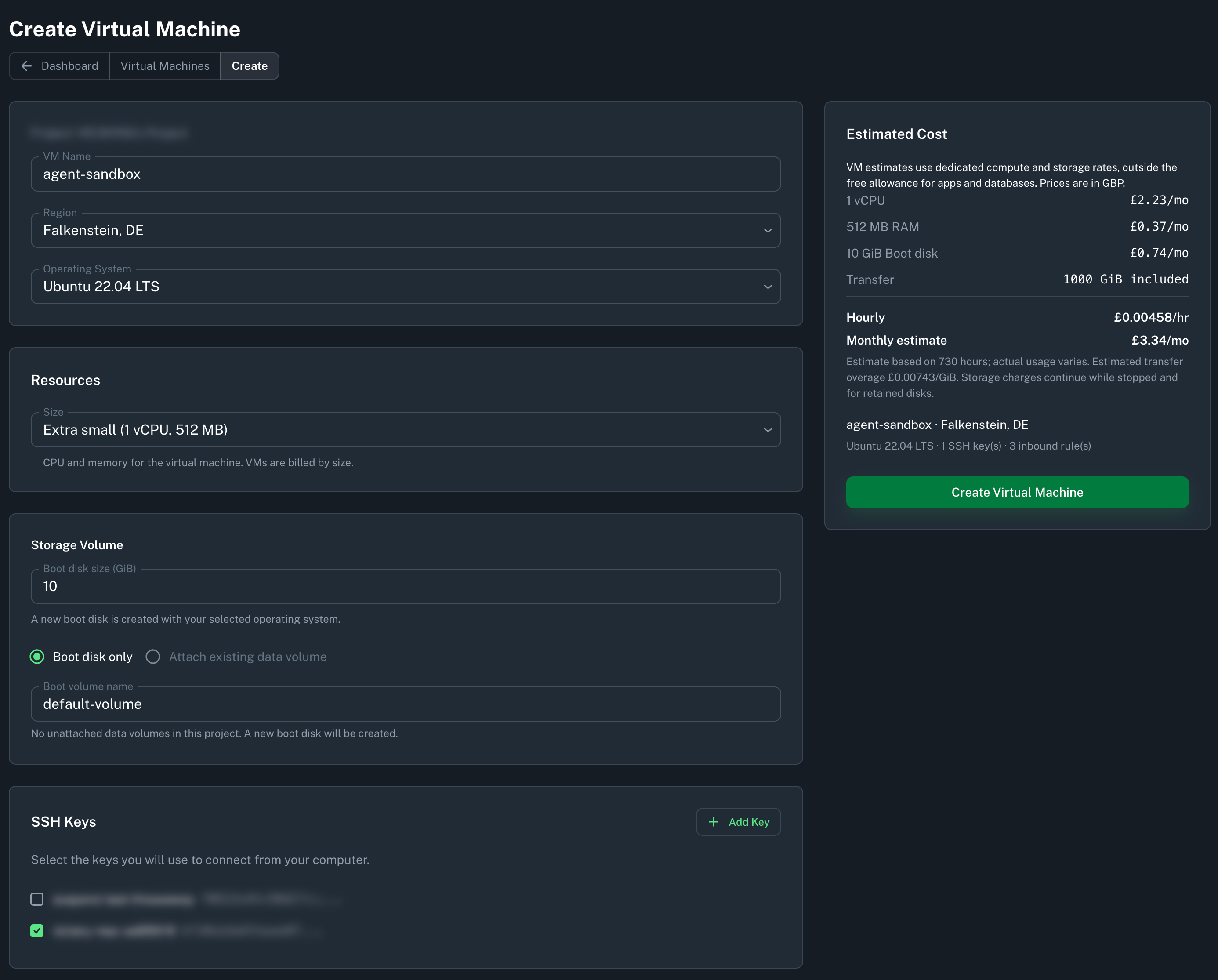
The VM shows its IP address when it starts.
Step 2: Close the ports the agent does not need
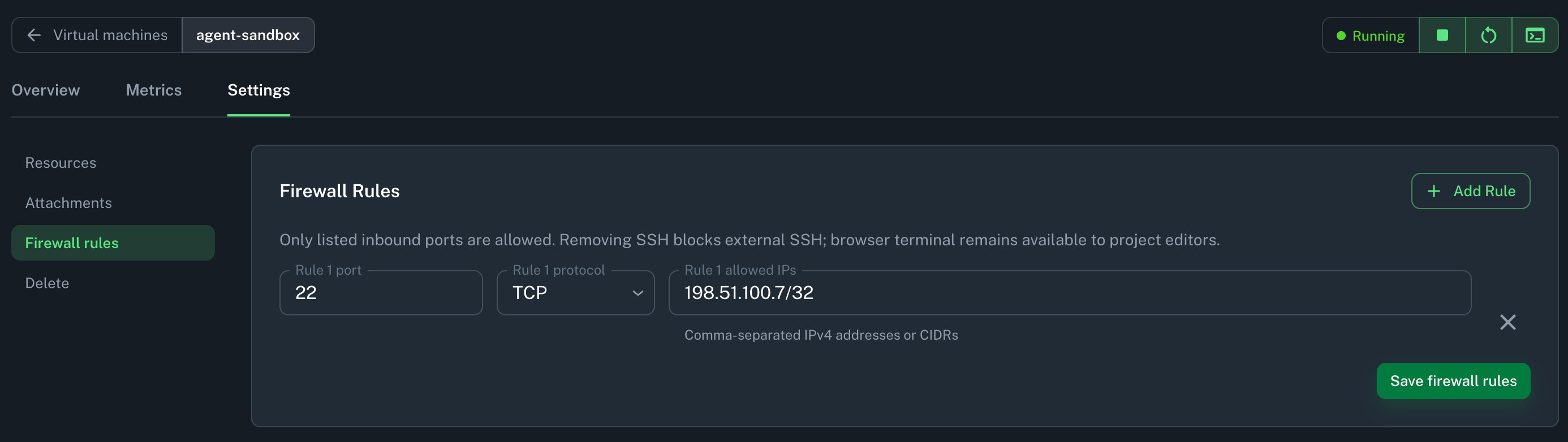
New VMs accept traffic on TCP ports 22, 80 and 443. An agent that edits code and runs tests does not serve web traffic. It needs only port 22 for SSH.
- Wait until the VM shows Running, then open its Firewall settings.
- Remove the rules for ports 80 and 443.
- Limit port 22 to your own IP address.
Step 3: Connect to the VM
Connect as the hostless user. This user can run admin commands with sudo.
ssh hostless@YOUR_VM_IPYou can also use the browser terminal in the dashboard. It stays available to project editors even when port 22 is closed.
Step 4: Install the agent and your code
-
Update the package list. The Ubuntu image already includes Git.
sudo apt update -
Clone the repository that the agent will work on:
git clone https://github.com/you/your-repo.git
cd your-repo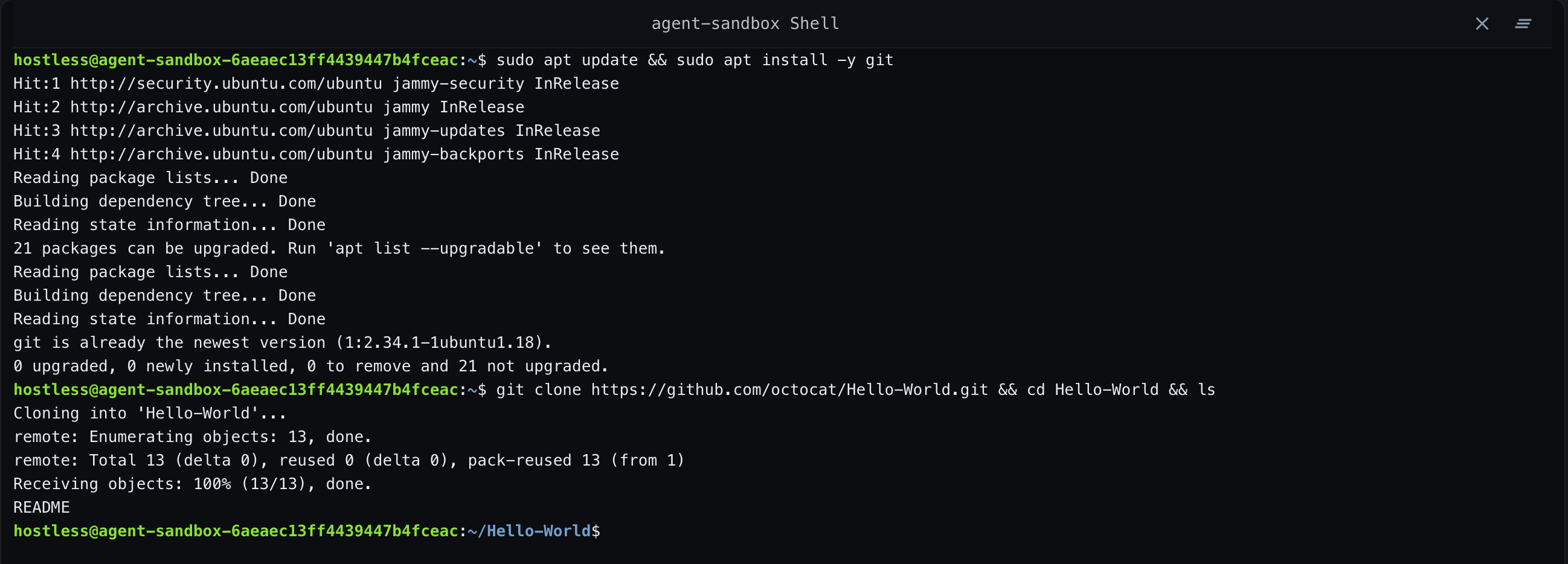
-
Install your agent’s command line tool, using its own instructions.
-
Start the agent in the repository folder.
The agent now works only inside this VM.
Step 5: Give the agent limited access
The agent can use any credential you put on the VM. Give it only what its task needs.
- Create a token that can read and push to only one repository.
- Store the token on the VM.
- Keep production environment variables and keys off the VM.
Step 6: Keep the agent’s work in Git
The agent’s work lives in the repository on the VM. Push it to a branch, so you can review it anywhere and start the next session on a clean machine.
-
Ask the agent to commit its changes to a new branch, such as
agent/task-name. -
Push the branch with the token from Step 5:
git push origin agent/task-name -
Review the branch and open a pull request from your own computer.
-
When you want a clean machine, create a new VM and clone the branch there.
Summary
- Run the agent on a small VM, away from your laptop and your app’s server.
- Close every port except SSH, and limit SSH to your IP address.
- Give the agent a token for one repository only.
- Push its work to a branch, so you can review it and move to a clean VM at any time.
Frequently asked questions
Is a VM safer than a Docker container for an AI agent?
A VM draws a stronger boundary. It runs its own kernel under hardware virtualization, so code inside it does not share a kernel with your other workloads. A container shares the host’s kernel.
Can I leave the agent running when I close my laptop?
Yes. The agent runs on the VM, so it keeps working after you disconnect. Use a tool such as tmux to keep the session open.
Which agents does this work with?
Any agent with a command line tool that runs on Linux, such as Claude Code, Codex or Aider.
Does the agent get access to my other Hostless apps?
The agent sees only the credentials you put on the VM. Keep tokens for your other apps off it. For the strongest boundary, create the sandbox VM in its own project, away from your apps and databases.

Comments